Showing posts with label Apple. Show all posts

Monday, July 07, 2014

Microsoft Word versus Apple Pages—A comparative review

Creative Commons
Occasionally, you have to hand it to the dark side. For years, over a decade, in fact, I’ve known and acknowledged that Microsoft Word is the best word processor.

I did not want to acknowledge that, though. I wanted there to be something better than the market leader and de facto standard. But my latest experience in publishing my latest book has only reinforced that conclusion.

I used OpenOffice's word processor and then Pages to write the book, which were fine when the goal was producing an e-book. I found Pages especially useful in that I could use it on both my desktop Macintosh and my iPad.

But when it came to formatting the book for print, well, using OpenOffice is downright aggravating, and Pages lacks some of the feature essential to producing a professional grade printed book.

My reaction to Pages

Pages is a light and easy to use application. It only costs $19.99 from the App store, and the iPad version is only ten bucks. On the other hand, Word for the Mac can only be had as part of the Microsoft Office, which costs $139 for the Home version, or $99 per year for the Web-based subscription.

One of Pages' productive feature is the way that it automatically saves your new files and updates in iCloud. This made it simple to switch between using my desktop computer in my office and my iPad while mobile. 

Pages’ user interface is characteristically clean and inviting on the desktop computer. The iPad version, though, features a shade of orange that I, personally, don’t like.

I reached the iPad version's limits quickly. It’s almost impossible to format paragraphs using the ruler at the top of the screen. I don’t know if my fingers are too thick and blunt or what, but the only way I could change the paragraph indents was to enlarge the view to at least 200 percent, and even then, it difficult to select the icons to move the margins.

Also, there doesn’t seem to be a Styles feature in the iPad version, where I can set the typeface, font size, paragraph spacing and other typographical features for blocks of text and headlines and change them with one command. This is standard in full featured word processors.

Finally, the major limitation on both the mobile and desktop versions of Pages is the lack of a facing pages feature. It just doesn’t seem to have entered the programmers’ minds.


What I need for print layout

Formatting an e-book is relatively simple compared to print output , because much of the format of the e-book is determined by the e-reader device. Sure, you can choose typeface and whether paragraphs are double-spaced or indented on the first line. But when you go to print, there are many aspects beyond those that you have to control.

When laying out a printed book, you have to consider the page spread—two facing pages, left and right. If you look at a professionally produced book, especially a textbook, you’ll see that the page layout elements are mirrors of each other. For example, if the page number (“folio” in old book layout parlance) is on top right corner of the right-hand page, it will be in the left corner of the left-hand (even-numbered, if you do it right) page.
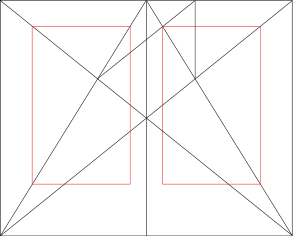
The page spread. Image courtesy Wikipedia.

Word has a simple means of allowing this: you just check “Different Odd & Even Pages” when formatting the Header or Footer.

Without this, you could put your page numbers in the centre of the header (top) or footer (bottom) of the page. But you cannot set your document to have the book title on the right hand pages and your name as the author on the left. There’s just no way to do that in Pages.


What I like about Word

Word offers everything you could ask for in a word processor: typing aids, a fully featured Styles menu, control over every aspect of not just wording, character style and page layouts, but also output to .pdf and e-pub format.

I can use Pages, but I have to use work-arounds. For instance, if I want to save the document in a format (like .doc) so that a non-Mac user can share it, I can’t just Save As a .doc. Instead, I have to Export a copy of the file. That means I now have two separate files, which leads to version control problems.

Just use the .doc version from then on, you say? Easy enough with Word, or most other programs. But the people at Apple have taken a bizarre approach. It will open the files with the .doc filename extension, but convert it on the spot to .pages format. Saving it in Word format requires saving it first as a .pages document, then Exporting it again to Word format. It’s not a big deal, but it is an extra step that gets annoying.
Workarounds. Image Creative Commons

Word is a big, expensive program with more features than any one person will ever use. But it does give me all the tools that I need for electronic and print publishing. For that reason, it will have to remain my word processing choice.

Saturday, November 23, 2013

My electronics are crazy

Who can tell me where to turn off the setting on the computer for “Cause random problems” or “Unpredictably shut off critical functions”?

Have you ever noticed that your electronics will suddenly stop doing what they have been doing, more or less reliably, for months or years, when you haven’t changed any settings? My earbuds for my iPhone do that. I’ve had the thing for almost a year now, and most of the time it works fine. But then, for no reason that I can discern, one day the little control on the right-hand wire will cease to function. Yesterday, for example, I was listening to music on my iPhone when it rang. I pressed the button, which in this circumstance, should switch it from music to phone mode and answer the call. 

Nothing happened.

Neither did the volume control on the earbud wire work. To adjust the volume, I have to use the on-screen controls or the buttons on the side of the handset. This may not seem like a big deal, but it is inconvenient when you have to put your book away, re-sling your briefcase on your shoulder and dig the phone out of your jacket pocket. Of course, by the time you do that, the call has gone to voice-mail.

This same thing happened last spring. I noticed that the control button on the wire didn’t work to adjust the volume or skip to the next song as I was listening while riding my bike to work. I thought perhaps that I had damaged the wire by taking the iPhone on my bike, although the phone had never suffered an impact. But after a couple of weeks, the button began working again of its own accord.

This happened a number of times over the spring and summer, but by August or so, the functionality seemed to settle down and just work as it should. Until yesterday.

This same self-discombobulation happens other electronics, too. My DVD player gets grumpy when I press the buttons too quickly, and then seizes up. I have to unplug it to clear it. 

At unpredictable intervals, my printers will cease to function — without any changes to the system, settings or options.

Yesterday, I printed a letter I wrote on my desktop computer, no problem. Today, my son tried to print a report for a university assignment, and got an error message that said his computer couldn’t find the printer.

In that two-day interval, no one made any changes to the settings or the operating system. But in a span of two days, repeating the same instruction once brought two different results. 

Einstein supposedly said that the definition of insanity is doing the same actions and expecting different results. Einstein, obviously, never had to put up with microcomputers.


Naturally, I welcome any suggestions to solve these problems. 

Sunday, September 30, 2012

Update from my book signing event!


I thought I had sent this post yesterday from my iPad, but Google and Apple don't play nicely together. See the note at the end of the post.

Here are my two lovely assistants at my book signing event: my boys, Nicolas and Evan. This is my second post today from Gaia Java in Stittsville, so I'm going to use a different approach this time.
 
How is the signing going, you ask? (Yes, I can hear you — there's an App for that). There's a little lull now, but I had a small crowd up to about a half-hour ago. Some friends dropped in, had some coffee, talked about books and kids and cars. I spoke to a couple of readers and gave away some copies of my short story, Sam, the Strawb Part

It's thrilling to be autographing copies of your book — I have never felt like that before. Now, the crowds have died away; I'm waiting for the next rush to come, the people who need their afternoon coffee. Maybe I'll meet some more readers. I won't hope for more sales — I've had more than most authors get in one day at this kind of event. But I won't turn them down, either.

The technological side 

The last post, I wrote the text in a word processor, then copied and pasted it into Google's Blogger app. I could also add a picture or two, taken with my iPad2. That part worked fairly well, although the resolution is not great because of the iPad2's (the "old" iPad, now) rudimentary camera.

The Blogger app is not very good. It's designed for use on a phone, and the iPad version does not use the whole screen — just a little rectangle in the middle. There isn't enough room to see much of what you write. The onscreen keyboard — well, let's just say that it's a good thing I have the Kensington Bluetooth keyboard synced to the iPad.

This time, I'm using the old-fashioned approach of emailing the post to my Blogger account. It takes more planning, because you cannot attach a picture to the email from within the iPad. If you want a picture, you have to open it in Photos, select Email Picture, and add the post as a caption.

 Enough for now. I'll be here for another hour, so as the celebs on all the talk shows say, if you're in town, come and see me.

One last technological note:

 Live blogging from the iPad has a number of holes in it. I tried, twice, to send this post from my iPad. Doing that requires a double work-around.

First, for remomte blogging, Blogger requires that you set up a special email account in Blogger; type your text into the email, put the title as the Subject line, and email it to this special address, and the content goes to your Drafts folder. Then you can edit it.

However, on Safari on the iPad, you cannot select a photo from the camera roll or anywhere else in the iPad. So if you want to put a picture, you have to use the second work-around, this one imposed by Apple: select the photo in the Photos app, select E-mail Photo, address it to your Blogger account and add your text in the body of the email below the picture. This does not give you the option to format the picture in any way, however. I suppose if you had a Picasa account, you could include the photo in your blog by selecting its URL, but you can't do that with Photostream, because Apple likes to keep those URLs secret.

So there, two work arounds, but in this case, they didn't work. I thought I had updated the blog yesterday afternoon, but no — all I got, instead of a new post, was a single photo in the Drafts folder. I have had to edit it in HTML mode in Safari on my iPad, because for some reason, I cannot add text in the Compose mode.

Here's a recommendation to Google and Apple: play nicely together.

Sent from my iPad, then finalized on my desktop.